Create and enable the SSO connection
This guide creates the SSO connection of the acme organization, for @acme.com addresses, then enables it.
Prerequisites
- The Super admin tier on the organization.
- The
acme.comdomain verified (see Verify a domain). - An application registered at your identity provider, with its client id and secret: Okta, Microsoft Entra ID, Google Workspace or Auth0. You will add the redirect URI to it in step 3.
- The checklist reviewed.
1. Open the connection page
- In your profile menu (top right), click Organization members.
- Open the SSO connection tab.
The Single sign-on (SSO) page shows No SSO connection.
2. Create the connection
- Click Create the connection.
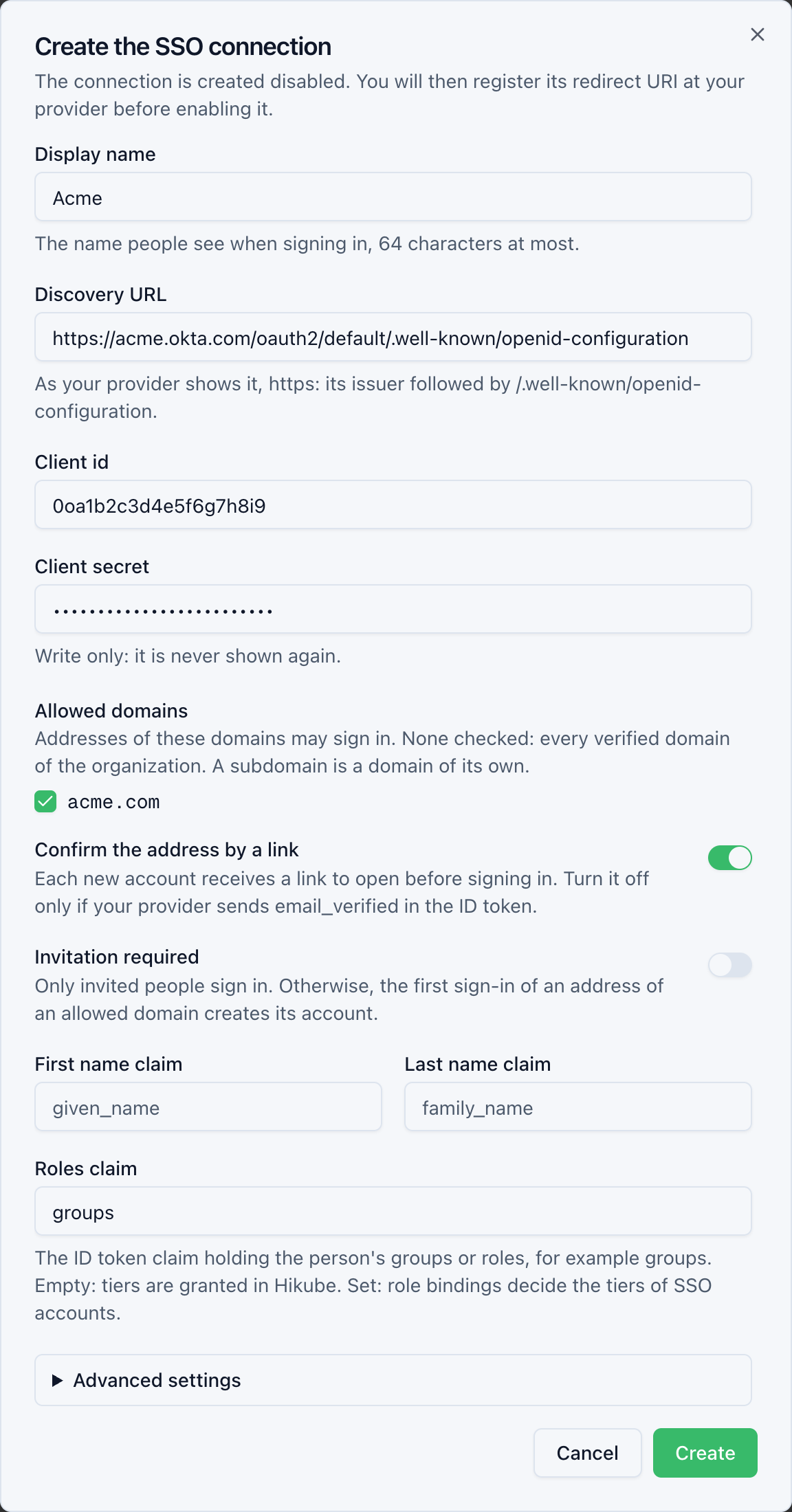
- Fill in the Create the SSO connection form:
| Field | Example | Good to know |
|---|---|---|
| Display name | Acme | The name people see at sign-in, 64 characters at most |
| Discovery URL | https://acme.okta.com/oauth2/default/.well-known/openid-configuration | As your provider shows it, over https. The URL is the issuer followed by /.well-known/openid-configuration |
| Client id | 0oa1b2c3d4e5f6g7h8i9 | The application's identifier at your provider |
| Client secret | Write only: it is never shown again | |
| Allowed domains | acme.com checked | None checked: every verified domain of the organization. A subdomain is a domain of its own |
| Confirm the address by a link | Enabled | Turn it off only if your provider sends email_verified in the ID token |
| Invitation required | Disabled | Enabled: only invited people sign in (see Manage the connection) |
| First name claim / Last name claim | Empty | Empty: given_name and family_name |
| Roles claim | Empty, or groups | Empty: tiers are granted in Hikube. Set: role bindings decide the tiers of SSO accounts |
Under Advanced settings:
| Field | Good to know |
|---|---|
| PKCE | Leave it enabled, unless your provider refuses it |
| Additional scopes | Separated by spaces. openid, email and profile are always requested. offline_access is refused |
- Click Create.
Hikube reads the discovery document and refuses a connection whose issuer, endpoints or signature are not suitable. The console shows SSO connection created. Register its redirect URI at your provider, then enable it. The connection is Disabled.
Nested claims
A claim can be a dotted path, for example hikube.roles for the roles field of the hikube object. A dot within a name is written \.: https://acme\.com/roles.
3. Register the redirect URI
- In the SSO connection card, copy the Redirect URI.
- At your provider, paste it into the application, as is.
4. Enable the connection
- Click Enable.
- The console shows SSO connection enabled. and the status changes to Enabled.
When enabling, Hikube checks the DNS record of each domain served again. If it has disappeared, enabling is refused: publish the record again (see Verify a domain).
5. Test
- Open a private browsing window on console.hikube.cloud.
- Enter an
@acme.comaddress that has no Hikube password. - You are sent to your provider. Sign in.
- With Confirm the address by a link, open the link received by e-mail.
A person's first sign-in
- Account creation. At their first sign-in, Hikube creates the person's account, without any tier. The account belongs to the organization: it is an SSO account.
- Confirmation. With Confirm the address by a link, the person confirms their address with the link received. The account appears in the members once confirmed. It is deleted if it is not confirmed within 24 hours.
- Tiers. An administrator then grants a tier from the members page. With a roles claim, role bindings grant the tiers at every sign-in.
- Domains. The address in the ID token must be on an allowed domain, compared exactly. With
acme.comalone,bob@eu.acme.comis refused. - Accounts with a password. They keep signing in with their password and are never redirected.
- Number of members. The organization's member limit applies. A person beyond it can sign in, but Hikube refuses their requests until a member has been removed.
- Profile. The first name and last name are taken from the ID token at every sign-in. They cannot be edited in Hikube.