Manage members
Open the member list
- In your profile menu (top right), click Organization members.
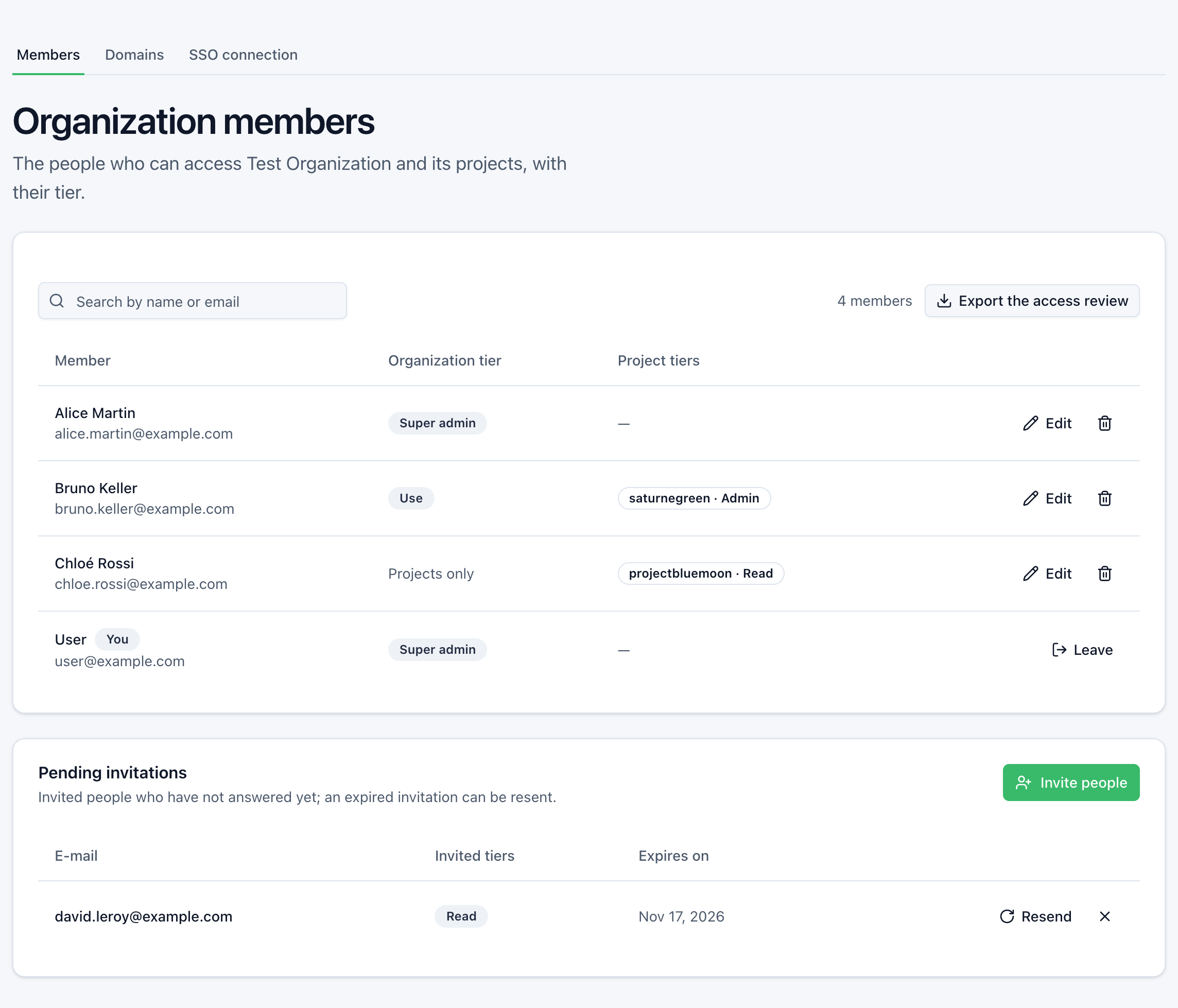
- The Members tab lists each person with their Organization tier and their Project tiers.
Possible badges: You, Account disabled, Projects only (no tier on the organization), No tier (an SSO account that no role binding gives a tier).
Change a member's tiers
Prerequisite: the Admin tier or higher.
- On the member's row, click Edit.
- In Tiers of …:
- On the organization: None, Read, Use, Admin or Super admin;
- On a project: one tier per project, which adds to the organization's.
- Click Save.
Lowering a tier signs the person out. The change applies within 5 minutes.
You cannot edit:
- a member with a higher tier than yours;
- your own tiers;
- an SSO account whose tiers come from the identity provider (see role bindings).
Only a super admin grants Super admin, and only to an account with a password and a second factor, not linked to an identity provider.
Remove a member's access
- On the member's row, click the trash icon.
- Confirm Remove access.
All their tiers in the organization and its projects are removed, and the person is signed out within 5 minutes. Their account is kept, with their access to other organizations. To come back, they will need a new invitation.
Removing all tiers in Edit (Remove access button) has the same effect.
Removing a member does not revoke the API keys they created: a key keeps its scopes. Revoke them in the API keys card of the project settings (see API authentication).
Leave the organization or a project
Any member can leave on their own.
- On your row (You badge), click Leave.
- Choose Leave the organization or Leave the project …, then confirm.
- Leave the organization removes all your tiers in the organization and its projects, and closes your session. Your account is kept. Coming back takes a new invitation.
- Leave the project removes the tier you hold directly on this project. A tier on the organization still applies to it. You can also leave a project from its settings, Danger Zone → Leave the project.
Two cases cannot leave:
- the last super admin who signs in with a password: first appoint another super admin;
- an SSO account whose tiers come from the identity provider: its next sign-in would give them back. Remove it from its group at your provider.
Members of a project
The settings of a project (gear icon next to the project, in the project selector) have a Project members card. It lists the people who hold a tier directly on this project. The access granted by the organization applies there too, without being listed.
From this card, an administrator can:
- Invite a person with a Tier on the project;
- Change tier of a member on this project;
- Remove access of a member to this project.
These actions only affect the tier held directly on this project. A project has no Super admin: choose Read, Use or Admin.
Delegation to project admins
By default, only the organization's administrators manage access to projects. A super admin can entrust it to the administrators of each project:
- Open Organization members, Members tab.
- In the Delegation to project admins card, enable Let project admins manage access to their project.
A project admin then invites to their project and changes the Read, Use and Admin tiers there, never above their own. They can neither remove nor demote the project's last direct administrator. Access granted by the organization stays managed by its administrators. An invitation sent during delegation stays valid after delegation is turned off.