Create a Kubernetes cluster in a few minutes
This guide walks you through creating your first Kubernetes cluster from the Hikube console, up to deploying a test application.
Prerequisites
- A Hikube account and access to the Hikube console
- A project with sufficient quotas (CPU, memory, storage)
kubectlinstalled on your workstation, to work in the cluster once it is created- The project administrator role, to download the cluster kubeconfig (step 4)
- Basic Kubernetes knowledge (pods, services, deployments)
Step 1: Create the cluster
- Sign in to the Hikube console and select your project.
- In the side menu, open Infrastructure > Kubernetes. The Kubernetes Clusters page is displayed.
- Click Create cluster. The Create a new cluster wizard opens on the General step.
Step 2: Configure and validate
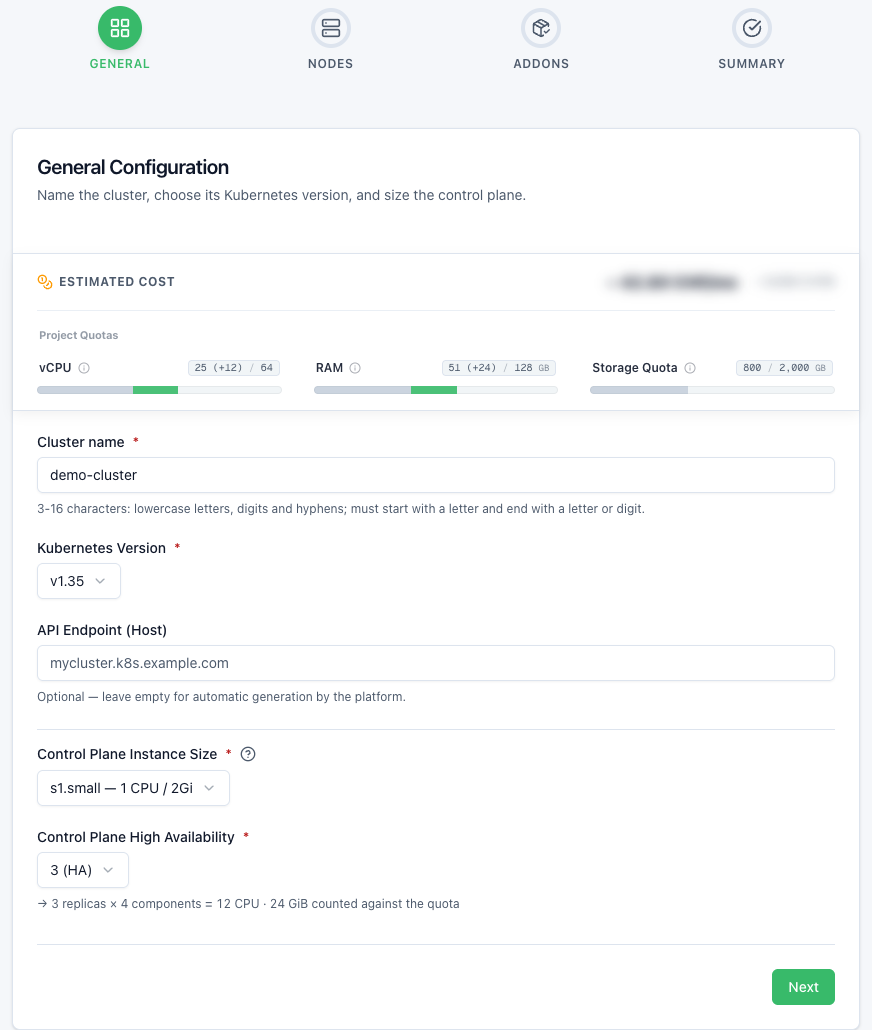
The wizard has four steps: General, Nodes, Addons and Summary. The Project Quotas gauges show at all times the share of the quota that the cluster will reserve.
General
| Field | Value for this guide |
|---|---|
| Cluster name | demo-cluster (3 to 16 characters: lowercase letters, digits and hyphens) |
| Kubernetes Version | The preselected version (the most recent one offered) |
| API Endpoint (Host) | Leave empty: the address is generated automatically by the platform, with no DNS configuration on your part |
| Control Plane Instance Size | s1.small — 1 CPU / 2Gi (no size is preselected: choose one) |
| Control Plane High Availability | 3 (HA) |
Click Next.
Nodes
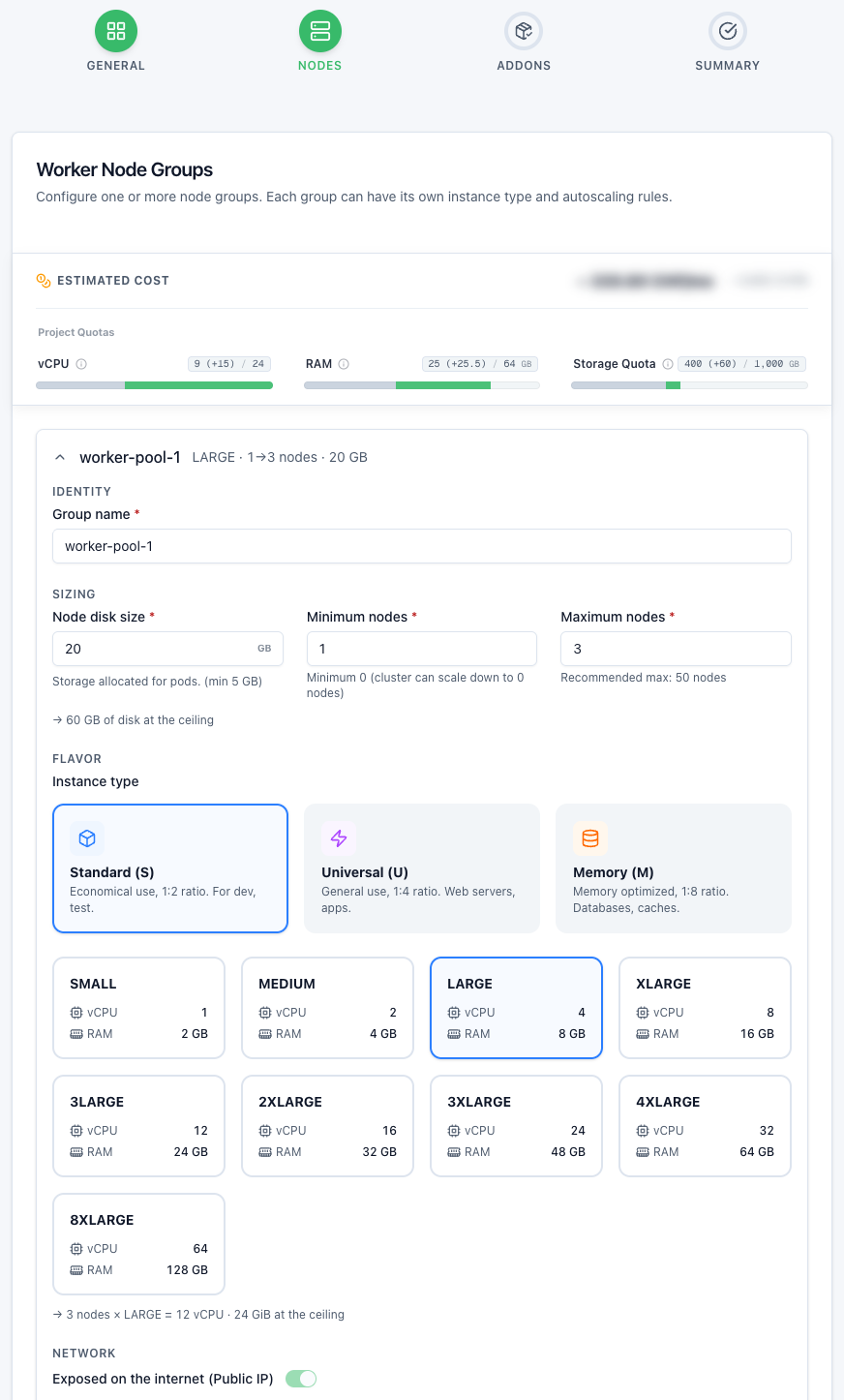
A first group, worker-pool-1, is already present. Expand it and fill in:
| Field | Value for this guide |
|---|---|
| Group name | worker-pool-1 |
| Node disk size | 20 GB |
| Minimum nodes | 1 |
| Maximum nodes | 3 |
| Instance type | Standard (S) series, size Large (s1.large, 4 vCPU, 8 GB) |
| Exposed on the internet (Public IP) | Enabled (enforced for the first group) |
Click Next.
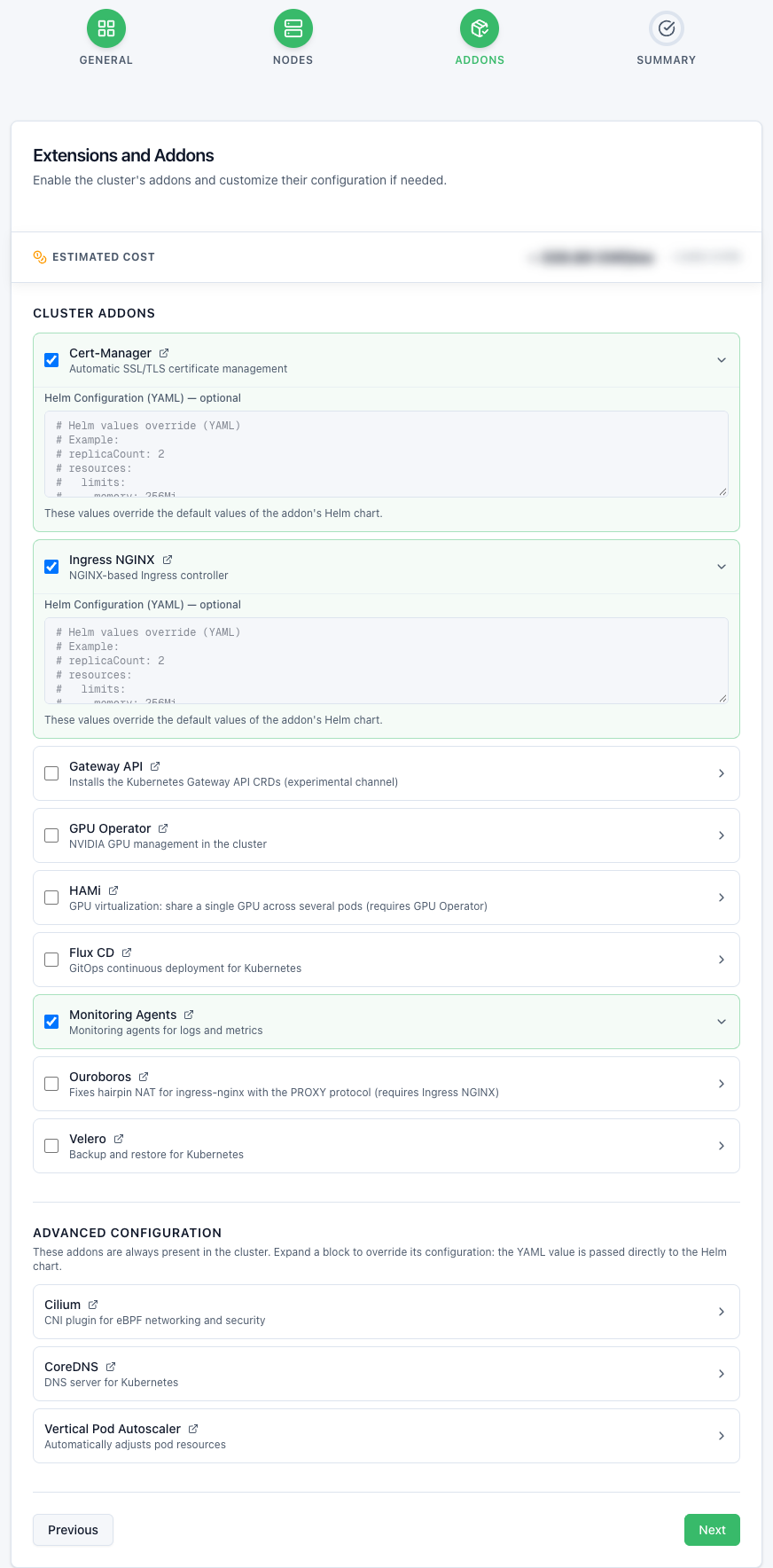
Addons
Cert-Manager, Ingress NGINX and Monitoring Agents are checked by default. Keep this selection for this guide. The Advanced Configuration blocks (Cilium, CoreDNS, Vertical Pod Autoscaler) do not need to be modified.
Click Next.
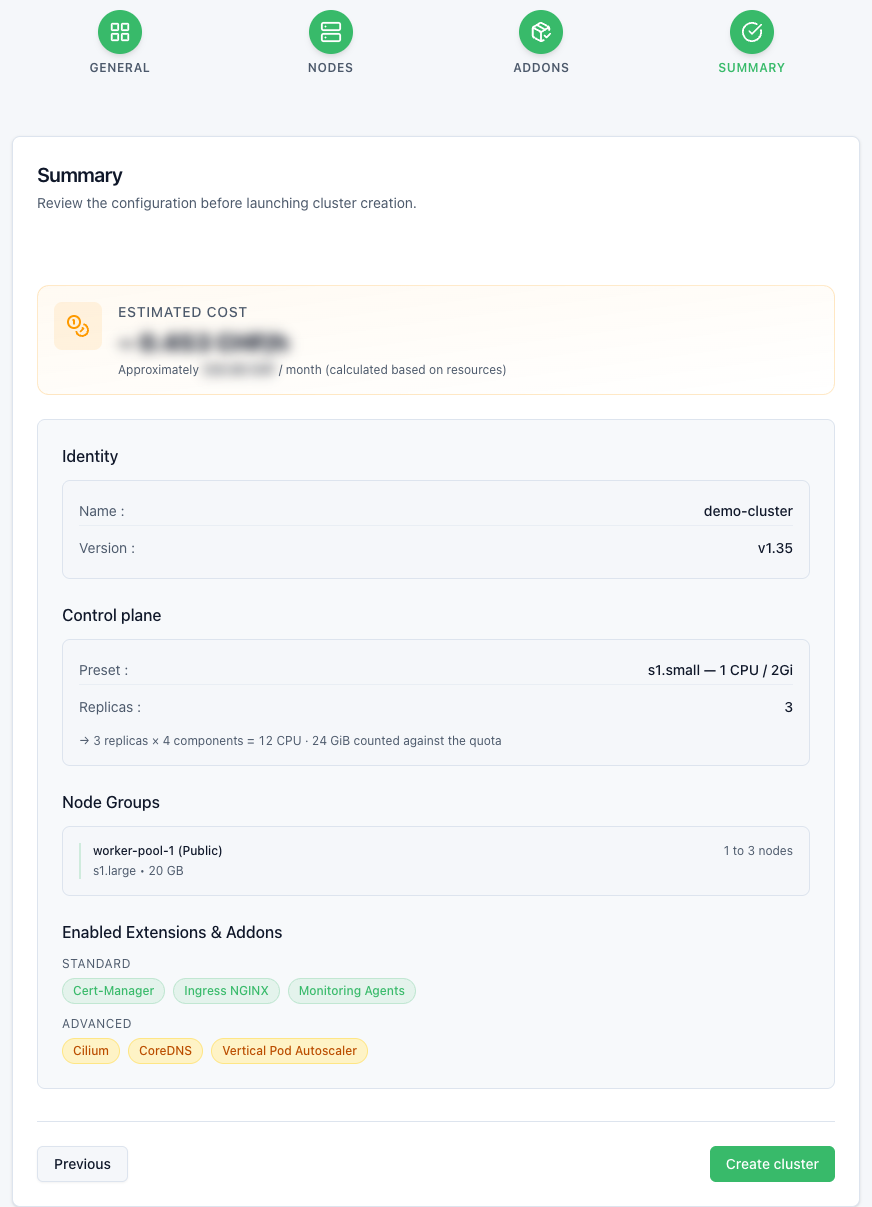
Summary
The Summary lists the cluster identity, the control plane, the node groups and the Enabled Extensions & Addons. Check the configuration, then click Create cluster.
For the first cluster of a project, the platform first prepares the project's Kubernetes environment, which takes a few minutes. The wizard then shows the Preparing the Kubernetes environment banner ("Preparing the project's Kubernetes environment; creation will resume automatically.") and retries the creation on its own, without losing your configuration. The Cancel button stops the wait.
Step 3: Check the status
After deployment, the console returns to the Kubernetes Clusters list. The demo-cluster cluster appears there with the Creating status.
Provisioning takes a few minutes. The status then changes to Ready.
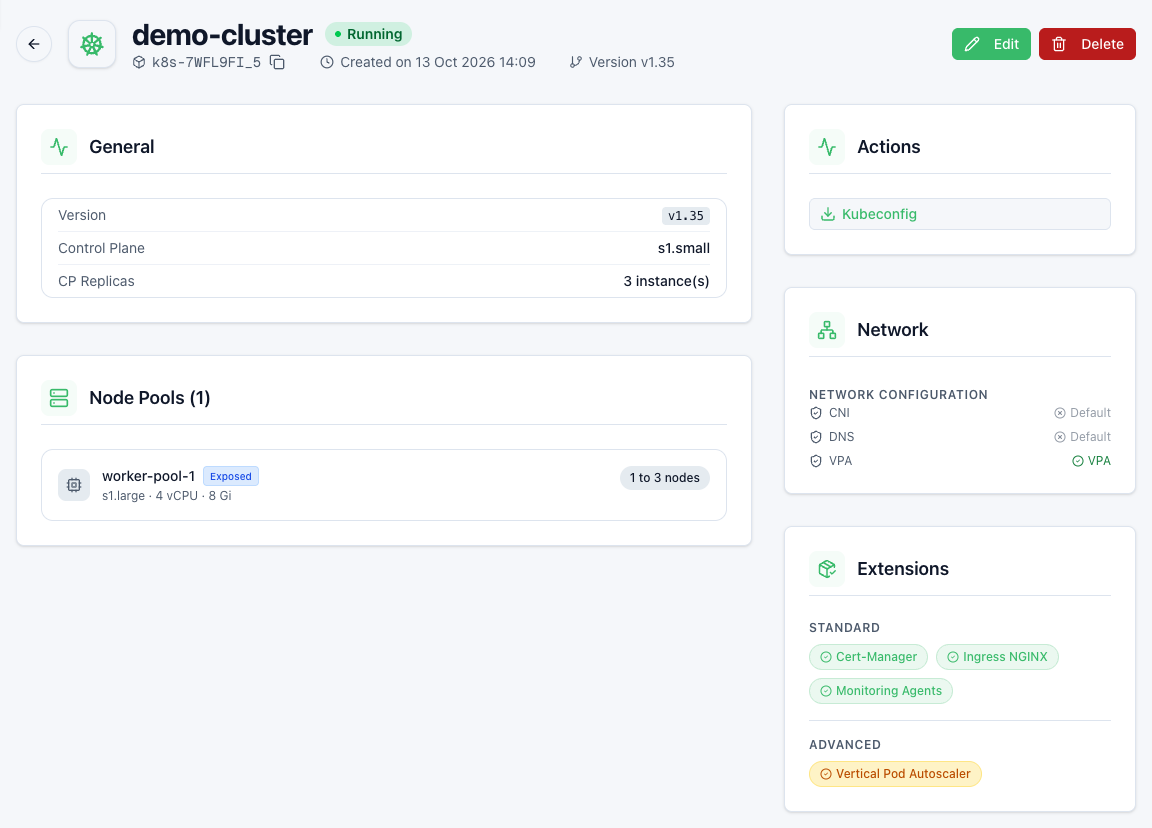
Click the cluster (or View details in its Actions menu) to open its detail page:
- General: Kubernetes version, control plane preset and number of instances;
- Node Pools: each group with its instance type and its number of active nodes, for example "1 active node (1 to 3)";
- Extensions: enabled addons.
Expected result: Ready status, and at least one active node in worker-pool-1.
Step 4: Retrieve the credentials
On the cluster detail page, in the Actions section, click Kubeconfig. The browser downloads the kubeconfig-demo-cluster.yaml file and the console confirms: "The kubeconfig file has been downloaded."
The kubeconfig is reserved for project administrators. For other members, the Kubeconfig button is disabled with the note "Reserved for project administrators."
This kubeconfig grants full administrator access to the cluster. Keep it in a safe place and do not commit it to version control.
Step 5: Connection and tests
Connect to the cluster
# Use the downloaded kubeconfig
export KUBECONFIG=~/Downloads/kubeconfig-demo-cluster.yaml

# Test the connection
kubectl get nodes
Expected result: one line per active node of the group, with the Ready status.
NAME                        STATUS   ROLES    AGE   VERSION
demo-cluster-worker-xxxxx   Ready    <none>   2m    v1.xx.x
Deploy a demo application
apiVersion: apps/v1
kind: Deployment
metadata:
  name: hello-hikube
  labels:
    app: hello-hikube
spec:
  replicas: 3
  selector:
    matchLabels:
      app: hello-hikube
  template:
    metadata:
      labels:
        app: hello-hikube
    spec:
      containers:
        - name: app
          image: nginx:alpine
          ports:
            - containerPort: 80
          resources:
            requests:
              memory: "64Mi"
              cpu: "50m"
            limits:
              memory: "128Mi"
              cpu: "100m"
---
apiVersion: v1
kind: Service
metadata:
  name: hello-hikube-service
spec:
  selector:
    app: hello-hikube
  ports:
    - port: 80
      targetPort: 80
  type: ClusterIP
---
apiVersion: networking.k8s.io/v1
kind: Ingress
metadata:
  name: hello-hikube-ingress
spec:
  ingressClassName: nginx
  rules:
    - host: demo.example.com
      http:
        paths:
          - path: /
            pathType: Prefix
            backend:
              service:
                name: hello-hikube-service
                port:
                  number: 80
kubectl apply -f demo-app.yaml

# Check the deployment
kubectl get pods -l app=hello-hikube
Expected result:
NAME                           READY   STATUS    RESTARTS   AGE
hello-hikube-xxxxx-xxxx        1/1     Running   0          1m
hello-hikube-xxxxx-yyyy        1/1     Running   0          1m
hello-hikube-xxxxx-zzzz        1/1     Running   0          1m
Test access
# Test the Service directly, without going through the Ingress
kubectl port-forward svc/hello-hikube-service 8080:80 &
curl http://localhost:8080

# Get the external IP of the Ingress NGINX controller (EXTERNAL-IP column)
kubectl get svc -A | grep ingress-nginx-controller

# Test the Ingress without configuring DNS
curl -H "Host: demo.example.com" http://<EXTERNAL-IP>
To publish the application under your own domain, create a DNS record pointing to this external IP, then follow How to deploy an Ingress with TLS.
Step 6: Quick troubleshooting
| Symptom | Check |
|---|---|
| The Next button stays grayed out and a Project Quotas gauge is exceeded | The project does not have enough quota for the control plane and the maximum number of nodes of each group. Reduce the maximum number of nodes, the flavor or the node disk size. |
| After Create cluster, the Preparing the Kubernetes environment banner stays displayed | First cluster of the project: wait, the console retries the creation on its own. If it shows "The project's Kubernetes environment is still not ready.", try again a few minutes later: your configuration is kept. |
| The cluster stays Creating for more than a few tens of minutes, or changes to Error | Contact support, specifying the cluster name and the project. |
| Kubeconfig shows "Could not download the kubeconfig file." | Wait until the cluster is Ready, then try again. |
| The Kubeconfig button is disabled ("Reserved for project administrators.") | The kubeconfig is reserved for project administrators: contact a project administrator. |
kubectl get nodes lists no Ready node | Check the number of active nodes in Node Pools, then run kubectl describe node <node-name>. |
Pods in Pending | kubectl describe pod <pod-name>; if the nodes are saturated, increase the Maximum nodes via Edit. |
| The Ingress does not respond | Check that the Ingress NGINX addon is enabled and that at least one group is Exposed on the internet (Public IP). |
To go further, see the Troubleshooting page.
Step 7: Cleanup
First delete the test application:
kubectl delete -f demo-app.yaml
Then delete the cluster from the console:
- In Infrastructure > Kubernetes, open the cluster's Actions menu and choose Delete (or click Delete on its detail page).
- In the "Delete demo-cluster?" window, enter the exact name of the cluster to confirm.
- Click Permanently delete.
Deletion is irreversible: all data associated with the cluster is permanently lost.
Summary
You have created:
- a Kubernetes cluster with a highly available managed control plane;
- a node group with autoscaling from 1 to 3 nodes;
- a sample application exposed by Ingress NGINX.
Next steps
- Concepts: details of each wizard field
- How to add and modify a node group
- GPU: use GPUs with Kubernetes