Concepts — Kubernetes
Terminology
| Term | Definition |
|---|---|
| Project | Isolated space of your organization, with quotas (CPU, memory, storage), in which the cluster and its nodes are created. Formerly called "tenant". |
| Cluster | Managed Kubernetes cluster: a control plane operated by Hikube and one or more node groups. |
| Control plane | Components that drive the cluster (API Server, Scheduler, Controller Manager, etcd), hosted by Hikube. |
| Node group | Set of homogeneous worker nodes (same instance type, same storage), with its own autoscaling bounds. The cluster detail page shows them under Node Pools. |
| Addon | Optional component installed and maintained by the platform in the cluster (Cert-Manager, Ingress NGINX, etc.). |
| Kubeconfig | Cluster access file, downloaded from the cluster detail page in the console. Downloading it is reserved for project administrators. |
Architecture
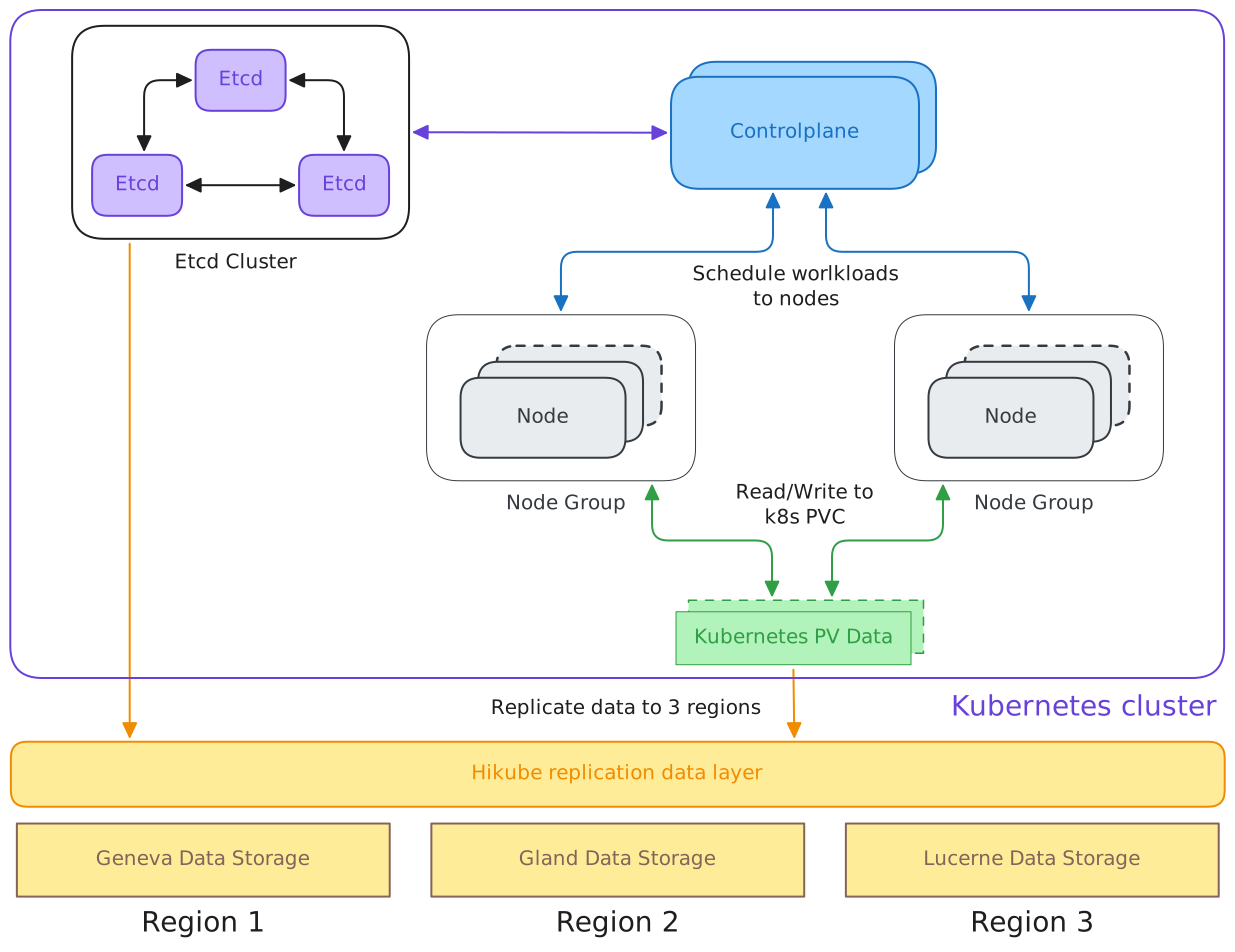
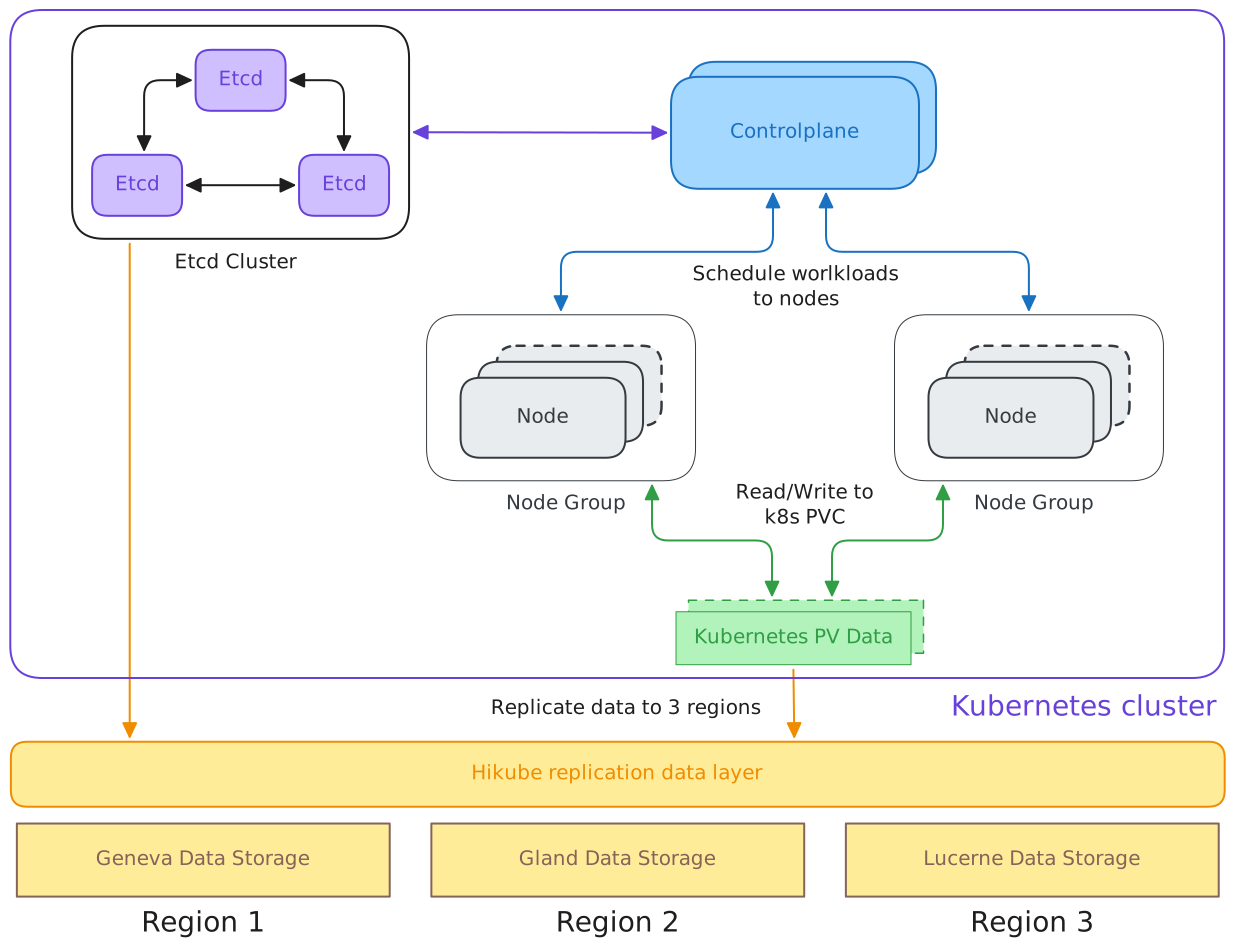
The diagram below illustrates the structure and main interactions of the Hikube Kubernetes cluster, including control plane high availability, node management, data persistence and cross-region replication.
Main cluster components
Etcd Cluster
- Contains several etcd instances replicated with one another.
- Ensures the consistency of the Kubernetes cluster state storage (information about pods, services, configurations, etc.).
- Internal replication between the
etcdnodes guarantees fault tolerance.
Control Plane
- Made up of the API Server, the Scheduler and the Controller Manager.
- Role:
- Schedules workloads (pods, deployments, etc.) on the available nodes.
- Interacts with etcd to read/write the cluster state.
Node Groups
- Each group contains several worker nodes.
- Workloads (pods) are deployed on these nodes.
- The nodes communicate with the Control Plane to receive their tasks.
- They read and write their data in Kubernetes Persistent Volumes (PV).
Kubernetes PV Data
- Represents the persistent storage used by the pods.
- Workload data is written to and read from this storage.
- This layer is integrated with Hikube replication to guarantee data availability.
Hikube replication layer
Hikube Replication Data Layer
- Acts as the interface between Kubernetes and the regional storage systems.
- Automatically replicates PV data to several regions for:
- high availability,
- resilience to regional failures,
- and service continuity.
Regional storage
- Region 1 → Geneva Data Storage
- Region 2 → Gland Data Storage
- Region 3 → Lucerne Data Storage
Each region has its own storage backend, all synchronized through the Hikube layer.
Communication flow
- The etcd nodes synchronize with one another to maintain a consistent global state.
- The Control Plane reads/writes in etcd to store the cluster state.
- The Control Plane schedules workloads on the Node Groups.
- The Node Groups interact with the Kubernetes PVs to store or retrieve data.
- The PV Data is replicated through the Hikube Replication Data Layer to the 3 regions.
Functional summary
| Layer | Main function | Technology |
|---|---|---|
| Etcd Cluster | Cluster state storage | etcd |
| Control Plane | Workload management and scheduling | Kubernetes |
| Node Groups | Workload execution | kubelet, container runtime |
| PV Data | Persistent storage | Kubernetes Persistent Volumes |
| Hikube Data Layer | Multi-region replication and synchronization | Hikube |
| Data Storage | Regional physical storage | Geneva / Gland / Lucerne |
Overall objective
This architecture ensures:
- High availability of the Kubernetes cluster.
- Geographic resilience thanks to cross-region replication.
- Data integrity through etcd and persistent storage.
- Horizontal scalability with the Node Groups.
Control Plane
The control plane is sized in the General step of the creation wizard, with two fields.
Control Plane Instance Size
Size applied to each of the four control plane components: API server, Controller manager, Scheduler and Konnectivity. The list is provided by the platform and each option shows its CPU and memory, for example "s1.small — 1 CPU / 2Gi".
| Size | vCPU | RAM (per component) |
|---|---|---|
s1.small | 1 | 2 GB |
s1.medium | 2 | 4 GB |
No size is preselected: the field shows "Select a size" until you choose one. If the list cannot be loaded, the console says so: "The preset list could not be loaded. Try again later or contact support."
A cluster created with a former size (for example small) keeps it: it is still shown as is, and the cluster can still be edited.
Component-by-component sizing (resources dedicated to the API Server, the Scheduler, etc.) is not offered in the console; contact support. The cluster edit page shows, read only, the size of each of the four components (Control plane components). The mention "(override)" after a size means resources set outside that size.
Control Plane High Availability
Number of control plane instances: 1, 3 (HA) or 5 (HA). The default value is 3.
An odd number of instances guarantees the etcd quorum; use at least 3 instances in production.
Below the field, the console shows the footprint counted against the project quota, for example "→ 3 replicas × 4 components = 12 CPU · 24 GiB counted against the quota" for the s1.small size: the quota counts the four components of each control plane instance.
The size and number of control plane instances cannot be changed in the console after the cluster is created. To change them, contact support.
Node groups
Node groups are configured in the Nodes step of the wizard (title Worker Node Groups). A cluster contains at least one group; Add node group creates a new one. Each group is a collapsible card that summarizes its flavor, bounds and storage.
| Field | Description | Default value |
|---|---|---|
| Group name | 3 to 16 characters: lowercase letters, digits and hyphens; starts with a letter, ends with a letter or a digit | worker-pool-1, worker-pool-2… |
| Node disk size | Size of each node's disk, in GB (minimum 5 GB): space allocated to pods, their images and their logs | 20 GB |
| Minimum nodes | Number of nodes always present. 0 is accepted | 1 |
| Maximum nodes | Autoscaling ceiling (between 1 and 100, greater than or equal to the minimum; 50 recommended maximum) | 3 |
| Instance type | Node flavor, chosen by series then by size | none (required choice) |
| Exposed on the internet (Public IP) | The group's nodes host the Ingress NGINX controller and receive incoming traffic | enabled for the first group |
| GPU | Model and number of GPUs attached to each node of the group | none |
The first node group is always exposed on the internet and cannot be deleted. Groups added afterwards are not exposed by default.
Instance types
The selector offers three series. The exact list of available flavors is provided by the platform.
Standard series (S) — 1:2 ratio
Economical use, for development and testing.
| Flavor | vCPU | RAM |
|---|---|---|
s1.small | 1 | 2 GB |
s1.medium | 2 | 4 GB |
s1.large | 4 | 8 GB |
s1.xlarge | 8 | 16 GB |
s1.3large | 12 | 24 GB |
s1.2xlarge | 16 | 32 GB |
s1.3xlarge | 24 | 48 GB |
s1.4xlarge | 32 | 64 GB |
s1.8xlarge | 64 | 128 GB |
Universal series (U) — 1:4 ratio
General use: web servers, applications.
| Flavor | vCPU | RAM |
|---|---|---|
u1.medium | 1 | 4 GB |
u1.large | 2 | 8 GB |
u1.xlarge | 4 | 16 GB |
u1.2xlarge | 8 | 32 GB |
u1.4xlarge | 16 | 64 GB |
u1.8xlarge | 32 | 128 GB |
Memory series (M) — 1:8 ratio
Memory-optimized: databases, caches.
| Flavor | vCPU | RAM |
|---|---|---|
m1.large | 2 | 16 GB |
m1.xlarge | 4 | 32 GB |
m1.2xlarge | 8 | 64 GB |
m1.4xlarge | 16 | 128 GB |
m1.8xlarge | 32 | 256 GB |
GPU
A group's GPU section only appears if GPUs are available for your project. There you choose one or more models and their number; these GPUs are attached to each node of the group.
Rules enforced by the console:
- as soon as a group has GPUs, the GPU Operator addon is enabled and can no longer be unchecked;
- a group created without GPUs cannot receive any: add a new node group to get GPUs;
- a group created with GPUs can change model or number, but must keep at least one GPU.
GPU reservation is calculated on the maximum number of nodes of the group: a group of at most 4 nodes with 1 GPU per node reserves 4 GPUs.
Options not offered
Custom node roles (other than exposure on the internet) and overriding the CPU/memory resources of a flavor are not offered in the console; contact support.
- Adjust the minimum and maximum number of nodes according to your scaling needs.
- Choose a series consistent with the workload (S for general use, U for balanced, M for memory).
- Plan a large enough node disk for images, logs and caches.
- Separate roles by group: one exposed group for incoming traffic, internal groups for compute.
Addons
Addons are chosen in the Addons step of the wizard (title Extensions and Addons), then modified from the cluster's edit page.
Cluster addons
They are enabled or disabled with a checkbox.
| Addon | Description | Enabled by default |
|---|---|---|
| Cert-Manager | Automatic SSL/TLS certificate management | Yes |
| Ingress NGINX | NGINX-based Ingress controller | Yes |
| Gateway API | Installs the Kubernetes Gateway API CRDs (experimental channel) | No |
| GPU Operator | NVIDIA GPU management in the cluster | No (enforced if a group has GPUs) |
| HAMi | Sharing a single GPU between several pods | No |
| Flux CD | GitOps continuous deployment | No |
| Monitoring Agents | Monitoring agents for logs and metrics | Yes |
| Ouroboros | Fixes Ingress NGINX hairpin NAT with the PROXY protocol | No |
| Velero | Backup and restore | No |
Dependencies checked by the console:
- HAMi requires the GPU Operator addon;
- Ouroboros requires the Ingress NGINX addon.
Advanced configuration
Cilium, CoreDNS and Vertical Pod Autoscaler are always present in the cluster. They cannot be disabled: you can only expand their block to override their configuration.
Overriding Helm values
Each addon (except Gateway API and Monitoring Agents) accepts a Helm Configuration (YAML) — optional field. The YAML value is passed directly to the addon's Helm chart and overrides its default values. It must be a YAML mapping (key: value); the console rejects invalid YAML. The link icon next to the addon name opens its page in this documentation.
An override can be entered at creation or from Edit. Clearing the field, or a line of the override, does not remove a value already applied to the cluster, whatever the addon. Contact support to return to the default values.
Cluster access
Once the cluster is ready, the Kubeconfig button in the Actions section of the detail page downloads the kubeconfig-<cluster-name>.yaml file. This button is reserved for project administrators; for other members, it is disabled. This file grants administrator access to the cluster with kubectl, helm or any Kubernetes client. The client certificate it contains is valid for one year from the creation of the cluster. See Access and tools.
The cluster's API address is defined by the API Endpoint (Host) field of the General step. It is optional: if left empty, it is generated automatically by the platform and resolves with no action on your part. If you enter your own domain name, the API server certificate covers it, but the DNS record still has to be created with your DNS provider: ask support for the address to point it to.
Lifecycle and quotas
- Status: a newly created cluster appears in the Kubernetes Clusters list with the Creating status, then Ready when it is operational. The Error status means that the last change could not be applied; the cluster may keep running with its previous configuration. The list's status filter offers, among others, Ready and Error.
- First cluster of a project: the platform first prepares the project's Kubernetes environment, for a few minutes. The wizard shows the Preparing the Kubernetes environment banner and retries the creation automatically; the Cancel button stops the wait. If the environment cannot be prepared, the console says so and does not retry: contact support.
- Quotas: the wizard's Project Quotas gauges count the control plane and each node group at its maximum number of nodes. Creation is blocked if the project does not have enough quota.
- Modification: the Edit button lets you change the version, the API endpoint, the node groups and the addons. The cluster name cannot be changed. The version can only go up: a downgrade to a lower version is refused.
- Deletion: the Delete button deletes the cluster after you confirm its name.