How to open the console of a VM
The Console tab of a VM's page gives you, in your browser, the VM's screen and its serial port. It is the equivalent of a screen and a keyboard plugged into the machine: it works even when the VM can no longer be reached over the network.
Use it to:
- troubleshoot a VM that no longer answers over SSH or RDP: an internal firewall that is too strict, a broken network configuration, a system stuck at boot;
- follow an installation or a boot, read the messages shown on screen;
- use the VM's boot menu or BIOS;
- send Ctrl+Alt+Del to a Windows VM.
For sustained work, SSH (Linux) or RDP (Windows) remain more comfortable and faster.
Prerequisites
- A Running VM in Infrastructure > VM Instances
- At least the Use role on the project (see Required rights)
- For the serial console: an account with a password inside the VM (see Logging in on the serial port)
Steps
1. Open the Console tab
- Open Infrastructure > VM Instances and click the VM.
- Click the Console tab, between Overview and Backups.
- Choose the view:
- Screen (VNC): the VM's graphical screen;
- Serial console: the VM's serial port, in text mode.
The Console tab only appears while the VM is running (or migrating). A stopped VM has no console to open: start it first (see Start a VM).
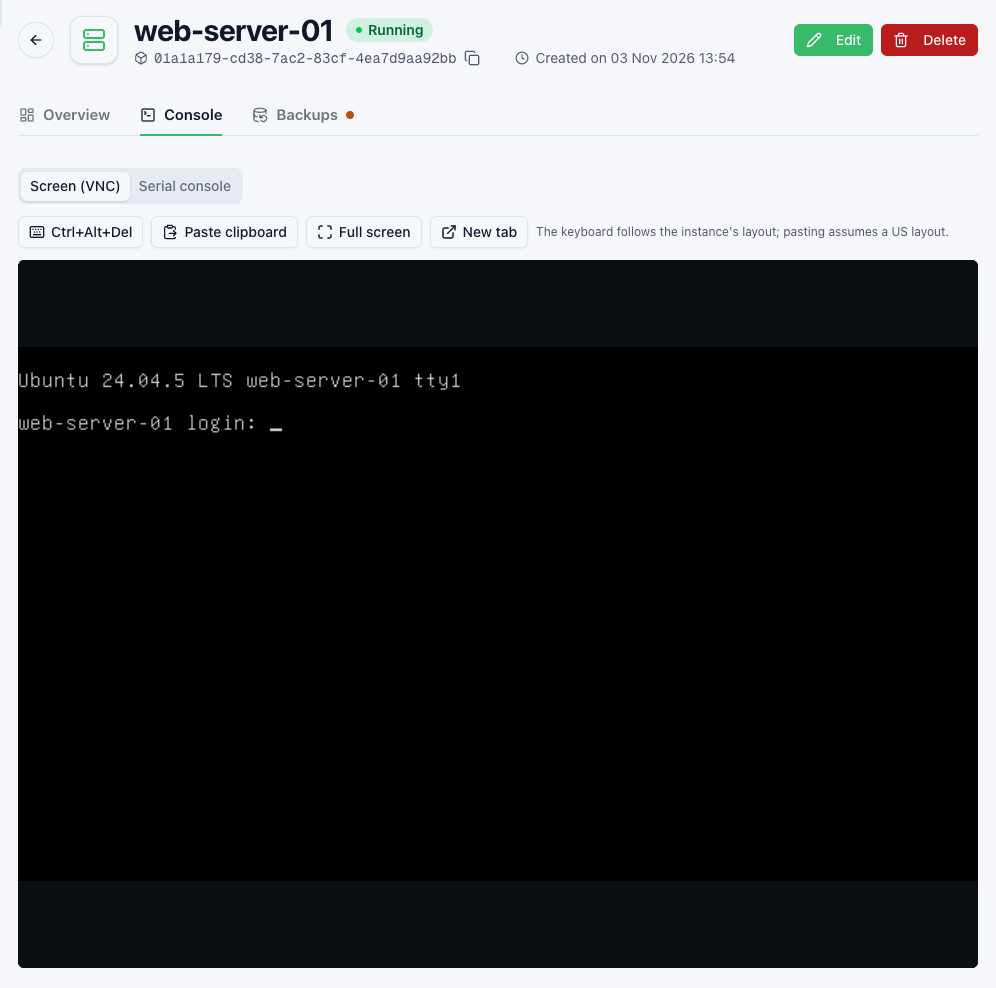
The screen and the serial port are independent: you can open both at the same time, for example in two browser tabs.
2. Use the screen
The Screen (VNC) view shows the VM's screen. Click inside the screen to send it the keyboard and the mouse. The toolbar offers:
| Button | Effect |
|---|---|
| Ctrl+Alt+Del | Sends the combination to the VM. Essential on Windows: typed on your keyboard, it is caught by your own system. |
| Paste clipboard | Types the text of your clipboard into the VM (see below). |
| Full screen | Shows the VM's screen in full screen. Hold Esc to leave it. |
| New tab | Opens the console on its own in a new browser tab. |
Keyboard. The keys you press are interpreted according to the keyboard layout configured inside the VM, not the one of your computer. If the characters shown do not match the keys (for example z and y swapped), change the layout in the VM's system.
Pasting. There is no clipboard shared between your computer and the VM. Paste clipboard works around this by typing the text key by key, as on a US keyboard:
- only ASCII characters, Enter and Tab go through: accented letters and other characters are skipped, and the console tells you how many could not be typed;
- 4000 characters at most;
- if the VM uses a layout other than US, some characters may come out differently.
If the browser refuses access to the clipboard, a Paste text window opens: paste the text there, then click Type the text.
3. Use the serial port
The Serial console view shows the VM's serial port in a terminal. When it opens, a banner recalls the organization, the project and the VM, then says: "Press Enter to show the login prompt."
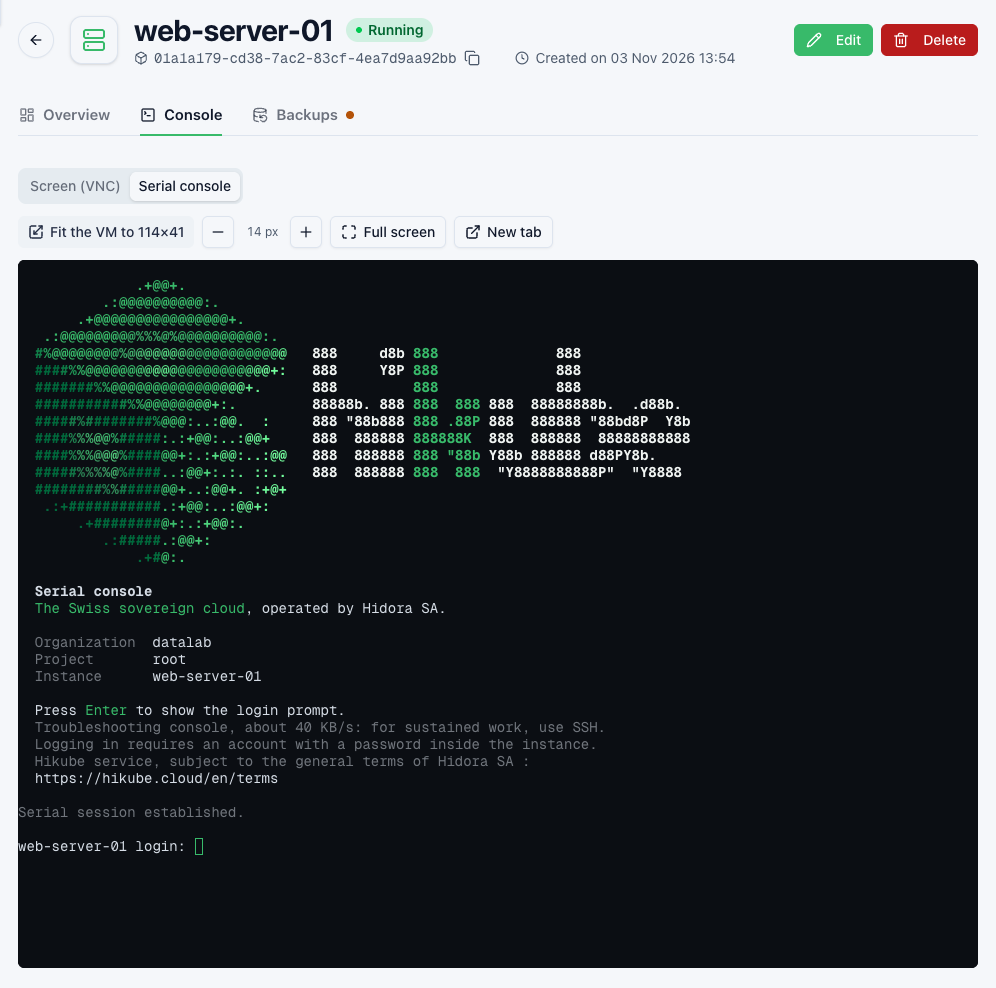
Press Enter: the VM's login prompt appears, if its system offers one on the serial port (common Linux images do). Log in with a user of the VM and its password.
The toolbar offers:
| Button | Effect |
|---|---|
| – / + | Makes the terminal font smaller or larger. |
| Full screen | Shows the terminal in full screen. |
| New tab | Opens the console on its own in a new browser tab. |
| Fit the VM to C×R | Gives the VM's system the size of the terminal (C columns, R rows). |
Fitting the size. The serial port does not carry the size of your window: without adjustment, full-screen programs (vim, less, top) only use part of the terminal. The Fit the VM to C×R button types stty rows R cols C into the session for you. Use it once logged in to a shell: at the login prompt, the command would be taken as a user name. Do it again after changing the size of the window or of the font.
What the serial port does not do:
- it has no history: only what the VM writes after the console opens is shown;
- its throughput is about 40 KB/s: a command that prints a lot of text scrolls slowly. For sustained work, use SSH.
Logging in on the serial port
The serial port asks for a user and a password. Cloud images often define none: you log in to them with an SSH key, and the default user has no password. In that case, the login prompt appears but no password is accepted.
Set a password before you need it, while the VM is still reachable:
- from an SSH session:
sudo passwd <user>; - when creating the VM, in the Cloud-Init script (User Data) field (see Configure cloud-init). For example, for the image's default user:
#cloud-config
password: "<temporary-password>"
chpasswd:
  expire: true
ssh_pwauth: false
expire: true forces a password change at the first login; ssh_pwauth: false keeps SSH reachable by key only: the password is only used on the console. Do not keep a real password in a cloud-init script: replace it at the first login.
Required rights
Opening the console requires at least the Use role on the project: from the console, you can act on the VM as with a keyboard. A member with only the Read role sees the VM, but opening its console is refused with the message "You are not allowed to open this console."
A VM's console only opens from the Hikube web console. It cannot be reached with an API key, nor from the command line.
One session per console
Each console of a VM, the screen as well as the serial port, accepts one session at a time. Opening it elsewhere, in another tab or by another person, closes the previous session. That session shows:
The console was closed, perhaps opened elsewhere.
with a Reconnect button. It does not reconnect on its own: clicking Reconnect takes the console back, and in turn closes the session of the other tab or person. Before taking a console back, make sure nobody else is using it.
The New tab button follows the same rule: the console opens in the new tab, and the original tab shows "The console is open in another tab." with an Open here button to take it back.
Duration and reconnections
| Situation | What the console does |
|---|---|
| About every 12 minutes | The secure connection is renewed: the session reopens on its own, in about a second. |
| Platform maintenance | Automatic reconnection. |
| VM migrated to another server | Automatic reconnection. |
| VM stopped or restarted from the Hikube console | The console shows "The instance is not running. The console will open as soon as it has started." and reopens on its own once the VM is running again. |
| Session open for 8 hours | The session closes ("The session reached its maximum duration of 8 hours."): click Reconnect. |
On the screen, a reconnection loses nothing: the picture is redrawn. On the serial port, what the VM writes during the second of the reconnection is lost; your session inside the VM stays open.
After a Restart from the Hikube console, the console reopens once the VM is running again: the first seconds of the boot (boot menu, BIOS) may already be over. To see them, keep the console open and restart from the VM's own system (sudo reboot, or Ctrl+Alt+Del then restart on Windows).
FAQ
Nothing shows on the screen
- The VM's screen may be asleep: click inside the screen or press a key, for example Shift.
- A Linux VM without a graphical interface shows a plain text login prompt; if it stays black, try the Serial console.
- If the VM has just started, its system may not have shown anything yet: wait a few seconds.
Nothing shows on the serial port
The serial port has no history: press Enter to make the login prompt appear. If nothing appears, the VM's system may not use its serial port (Windows and some custom images do not): use Screen (VNC).
The console closed
Depending on the message shown:
- "The console was closed, perhaps opened elsewhere.": the same console was opened in another tab or by another person (see One session per console);
- "The session reached its maximum duration of 8 hours.": click Reconnect;
- "The connection was too slow to keep up with the screen: the session was closed.": your Internet connection could not keep up with the screen's throughput. Click Reconnect; if it happens again, close the applications loading your connection or reduce the activity on the VM's screen.
In all three cases, the console does not reopen on its own.
I have no password for the serial port
This is the most frequent case with cloud images, which are meant for SSH key login. Set a password as described in Logging in on the serial port. If the VM can no longer be reached over SSH and has no password, the console cannot log you in: fix the cause through the cloud-init script (Edit > Advanced Configuration, then Reload UserData and Restart, see Troubleshooting), or contact support.
The Console tab does not appear
The VM is not running: the tab is only offered for a Running VM (or one being migrated). Start it, then reopen its page.
Terms of use
The console is a Hikube service, subject to the general terms of Hidora SA.